A monthly update from Norcotech
October is Cybersecurity Awareness Month, making it a good time to take a closer look at the everyday decisions that affect your business's security. Those decisions may solve an immediate problem, but they can leave you with more access than people need, business information on devices you don't control, and systems that are difficult to manage when someone leaves.
This month, we explain why employees should use standard computer accounts, how to set rules for personal devices, and what to do before canceling cloud software. We also cover guest Wi-Fi and IT budgeting for your company.
Check whether your current setup still matches the way your team works. If visitors have used the same Wi-Fi password for years, ask us to check the network. If employees use personal devices, make sure the rules are written down. If you'd like help checking any of these areas, give us a call.
Until then, stay safe.
The Norcotech Team
Why your employees shouldn't have administrator access to their computers
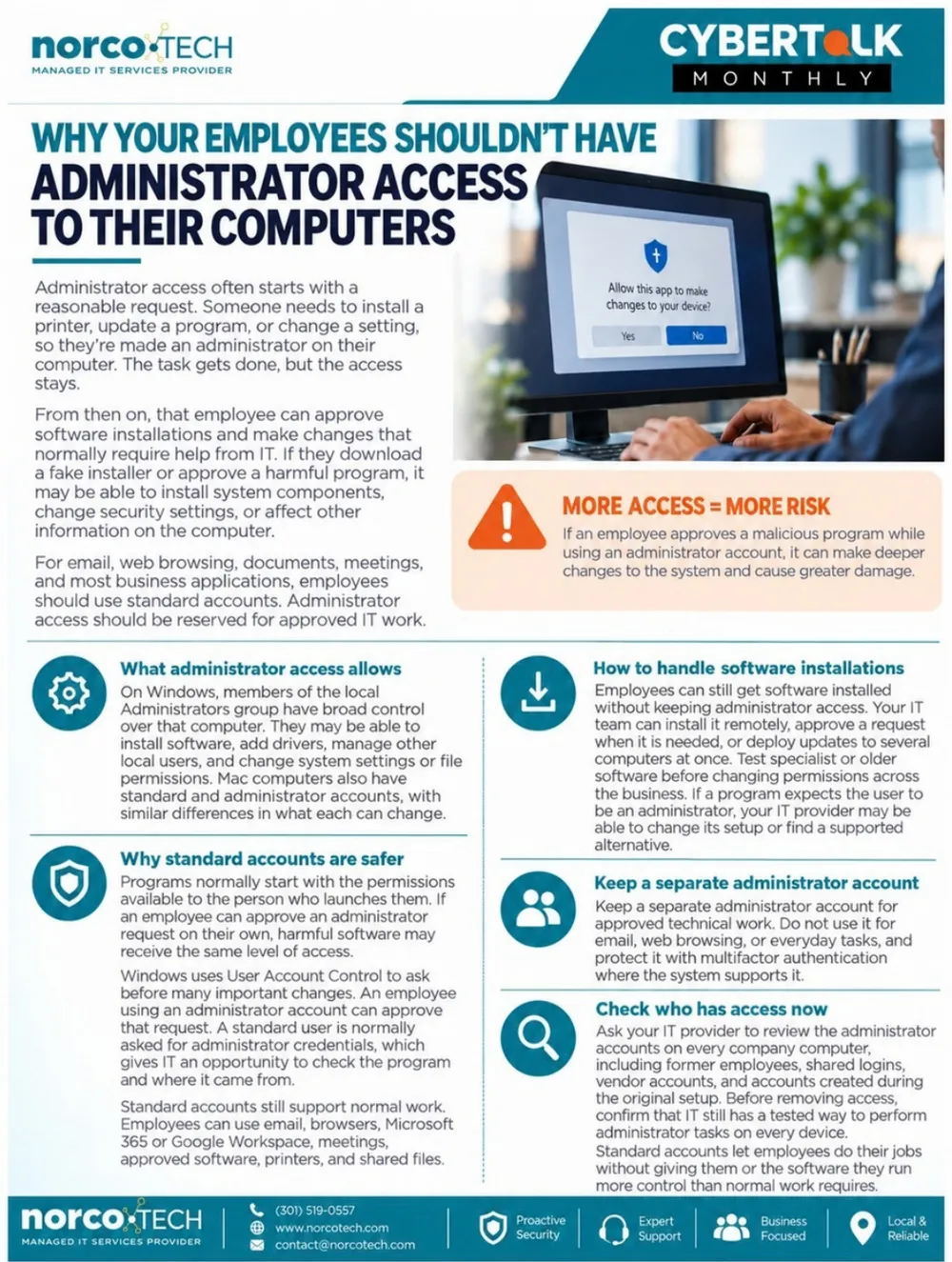
Administrator access often starts with a reasonable request: someone needs to install a printer or change a setting, so they're made an administrator. The task gets done, but the access stays. From then on, a fake installer or harmful program they approve can install system components, change security settings or affect other information on the computer.
More access means more risk. If an employee approves a malicious program from an administrator account, it can make deeper changes and cause greater damage.
Why standard accounts are safer
Programs normally start with the permissions of the person who launches them. On Windows, User Account Control asks before many important changes; an administrator can simply approve, while a standard user is asked for admin credentials, giving IT a chance to check the program. Standard accounts still handle email, browsers, Microsoft 365 or Google Workspace, meetings, approved software, printers and shared files.
How to handle software installations
Your IT team can install software remotely, approve a request when needed or deploy updates to many computers at once. If a program expects admin rights, your IT provider may be able to change its setup or find a supported alternative.
Keep a separate administrator account
Use it only for approved technical work, never for email or browsing, and protect it with multifactor authentication.
Check who has access now
Ask your IT provider to review the administrator accounts on every computer, including former employees, shared logins, vendor accounts and accounts created during setup, while making sure IT keeps a tested way to do admin work.
Review admin access with a security audit →Should employees use personal devices for work?
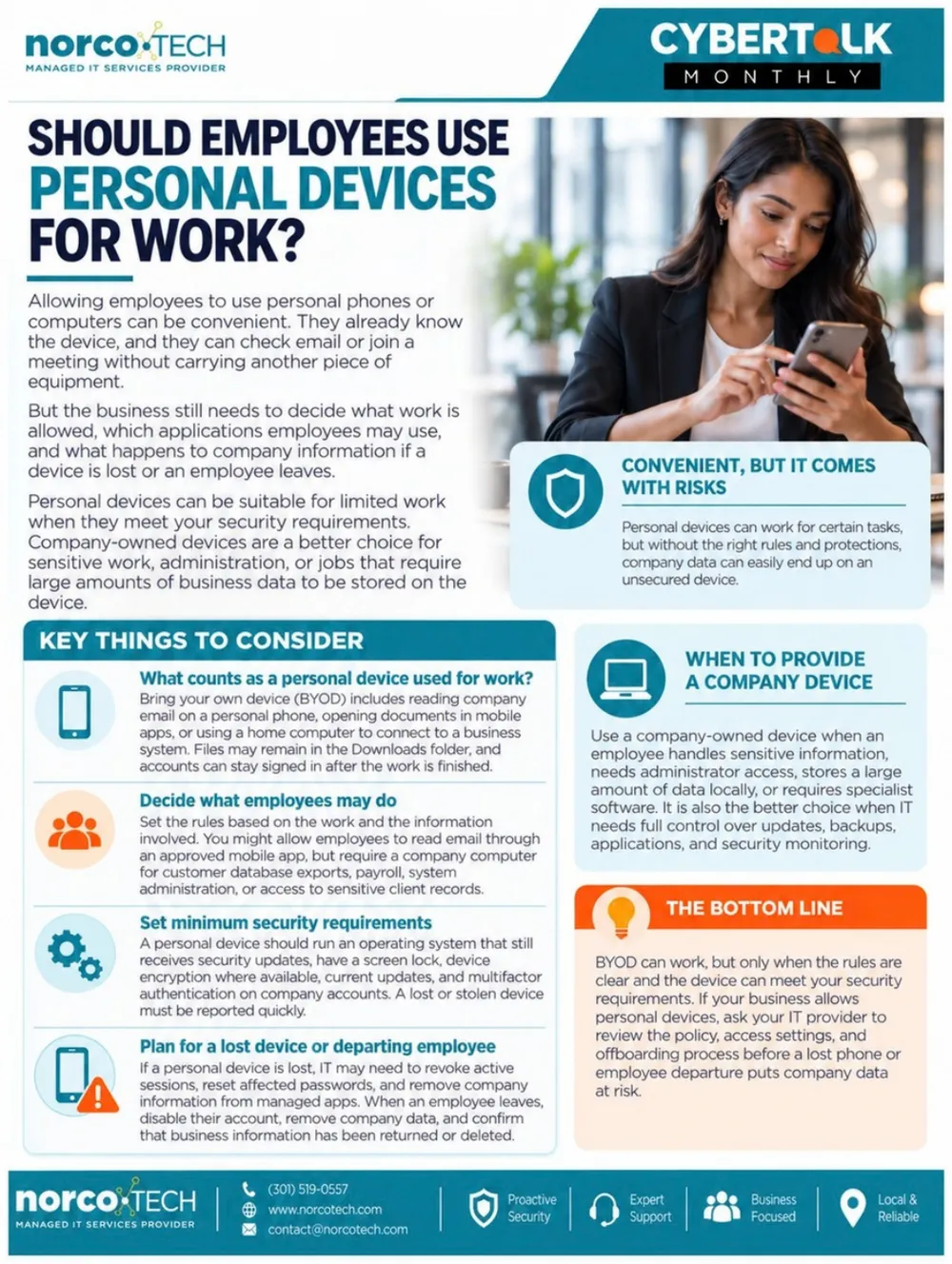
Letting employees use personal phones or computers can be convenient. But the business still needs to decide what work is allowed, which apps may be used and what happens to company information if a device is lost or someone leaves. Personal devices can suit limited work when they meet your security requirements; company-owned devices are better for sensitive work.
Key things to consider
- What counts as BYOD: reading company email on a personal phone, opening documents in mobile apps or connecting from a home computer. Files can linger in Downloads and accounts can stay signed in.
- Decide what employees may do: for example, email through an approved app, but a company computer for payroll, database exports or sensitive client records.
- Set minimum security requirements: a supported operating system, screen lock, encryption, current updates and MFA on company accounts. Lost devices must be reported quickly.
- Plan for a lost device or departing employee: revoke sessions, reset passwords and remove company data from managed apps.
When to provide a company device
When an employee handles sensitive information, needs admin access, stores lots of data locally or needs specialist software, or when IT needs full control over updates, backups and monitoring.
BYOD can work, but only when the rules are clear and devices meet your requirements. Ask your IT provider to review the policy before a lost phone puts company data at risk.
What happens to your data when you cancel a cloud service?
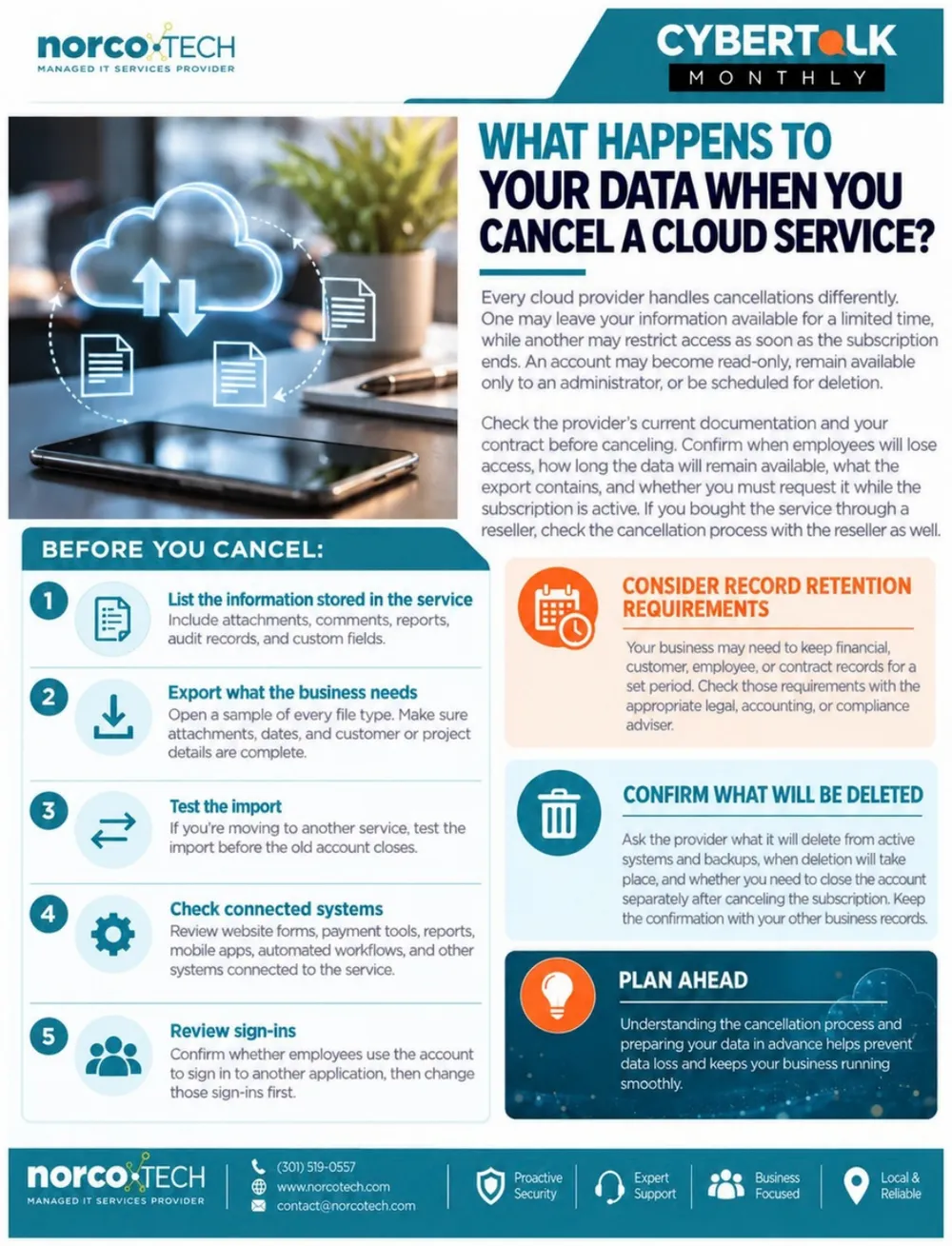
Every cloud provider handles cancellations differently. Your account may become read-only, stay available only to an administrator or be scheduled for deletion. Check the provider's documentation and your contract before canceling, and if you bought through a reseller, check their process too.
Before you cancel
- List the information stored in the service, including attachments, comments, reports, audit records and custom fields.
- Export what the business needs, and open a sample of every file type to confirm it's complete.
- Test the import into the new service before the old account closes.
- Check connected systems such as website forms, payment tools, reports, apps and automations.
- Review sign-ins, and change any other apps that employees sign into with that account.
Record retention and deletion
Your business may need to keep financial, customer, employee or contract records for a set period, so check with your legal, accounting or compliance adviser. Ask the provider what will be deleted from active systems and backups, and when, and keep the confirmation.
Get help with your next migration →Why guest Wi-Fi should be separate from your business network
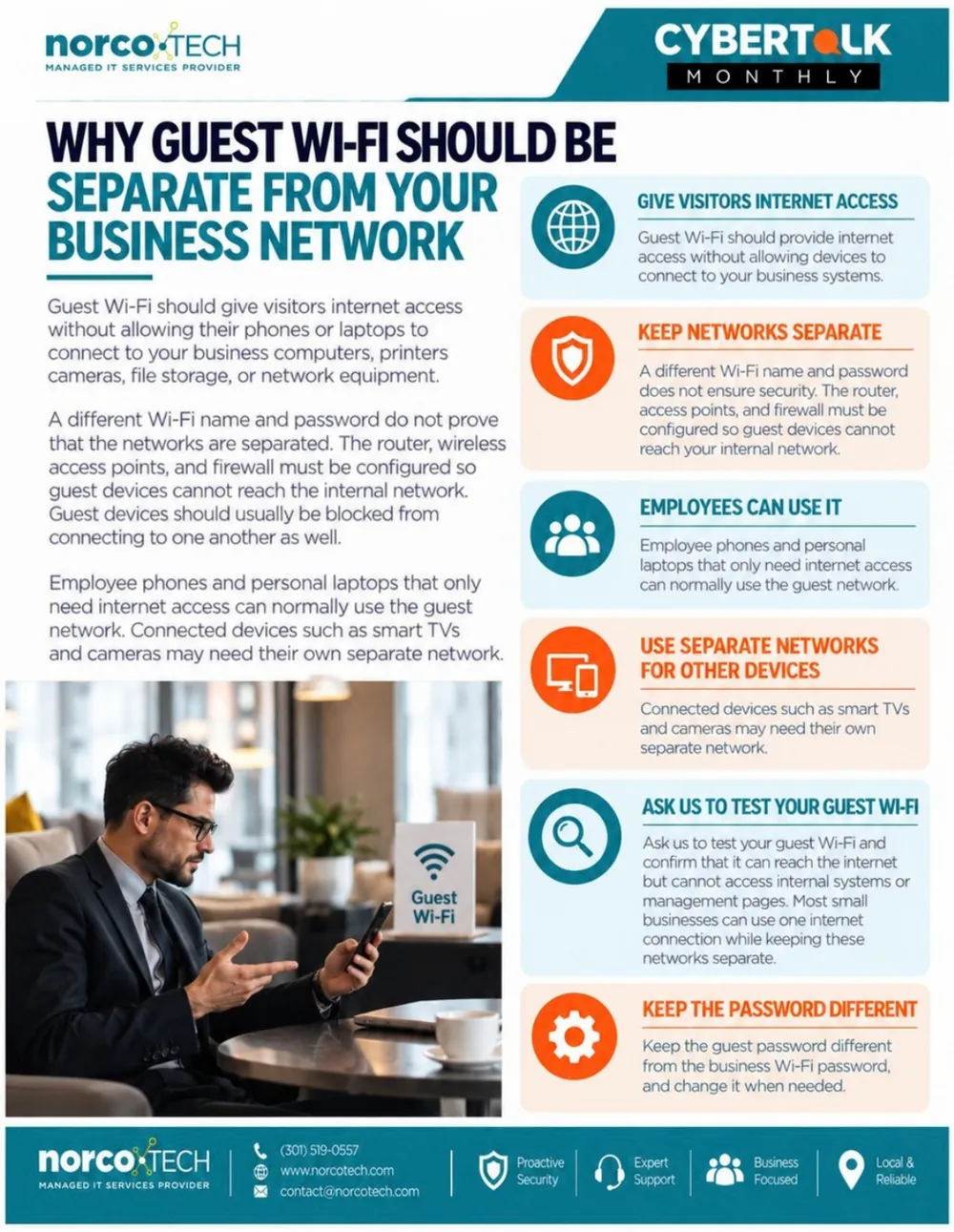
Guest Wi-Fi should give visitors internet access without letting their phones or laptops reach your business computers, printers, cameras, file storage or network equipment.
A different Wi-Fi name and password don't prove the networks are separate. The router, access points and firewall must be configured so guest devices can't reach the internal network, and guest devices should usually be blocked from reaching each other too.
- Employee phones and personal laptops that only need internet can normally use the guest network.
- Smart TVs and cameras may need their own separate network.
- Keep the guest password different from your business Wi-Fi password, and change it when needed.
Ask us to test your guest Wi-Fi and confirm it reaches the internet but not your internal systems or management pages.
See our network and cabling services →Small business IT budget: what to include and how to plan it
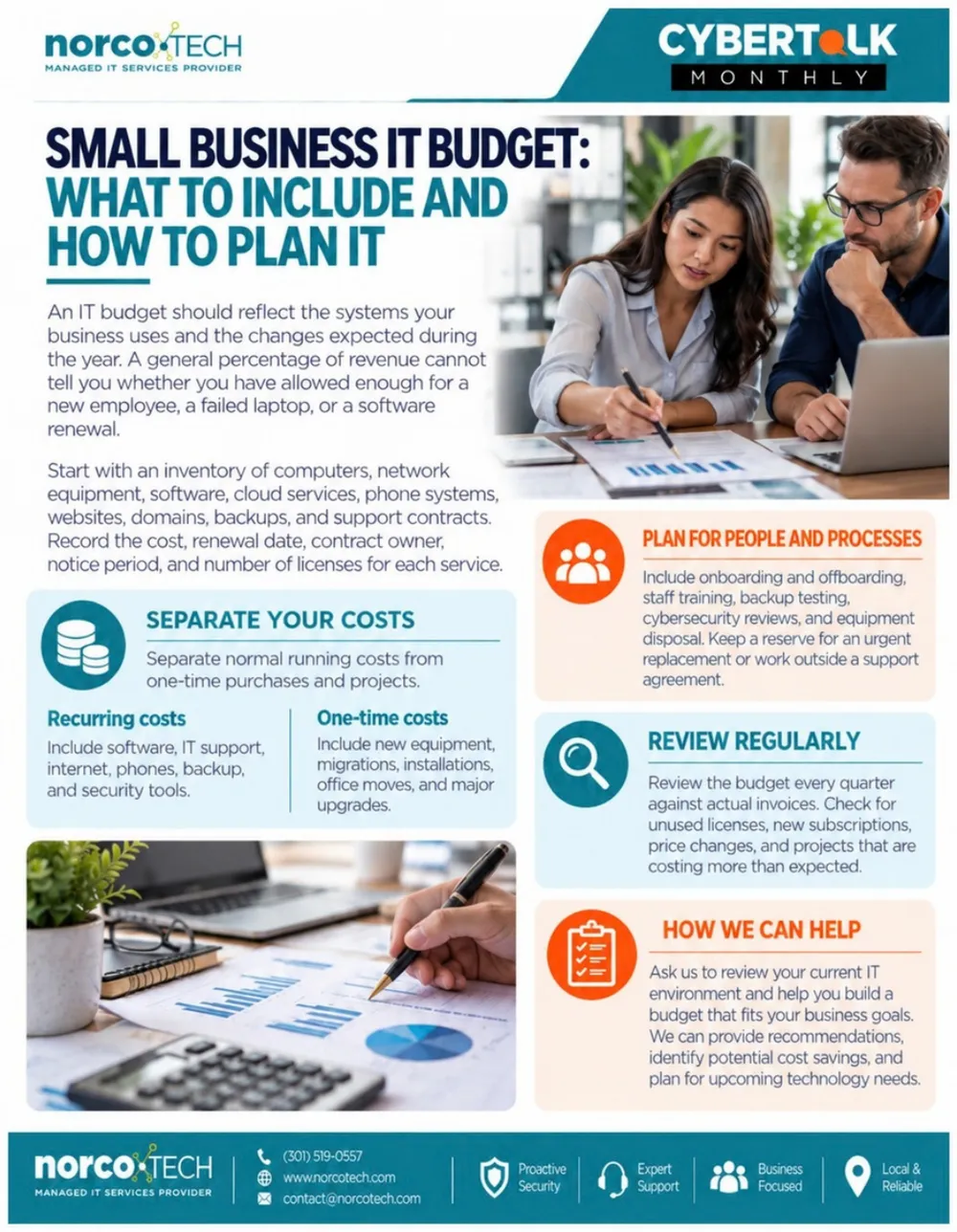
An IT budget should reflect the systems you use and the changes expected this year. A general percentage of revenue can't tell you whether you've allowed enough for a new hire, a failed laptop or a software renewal.
Start with an inventory of computers, network equipment, software, cloud services, phones, websites, domains, backups and support contracts. Record the cost, renewal date, contract owner, notice period and number of licenses for each.
Separate your costs
- Recurring: software, IT support, internet, phones, backup and security tools.
- One-time: new equipment, migrations, installations, office moves and major upgrades.
Plan for people and processes
Include onboarding and offboarding, training, backup testing, cybersecurity reviews and equipment disposal, plus a reserve for urgent replacements.
Review regularly
Compare the budget against actual invoices every quarter, looking for unused licenses, new subscriptions, price changes and projects running over.
We can review your IT environment and help you build a budget that fits your goals, including cost savings and upcoming technology needs.
Start with an IT audit →From our clients
★★★★★
“I hereby give Norcotech five stars AND note that I would be willingly also give them my left arm! A previous tech support company had abused their access to our systems and seized control of them. Norcotech worked immediately and tirelessly and amazingly to recover everything from the other company. Even better, they are just plain good people. If you're reading this review, it means you've found a great company.”
Don't play security roulette
When was the last time your company completed security testing or awareness training? Data breaches are a part of life now, and skipping vulnerability assessments is like playing Russian roulette with your data. A Norcotech cybersecurity package protects your business without the time and expense of managing it all yourself.
Learn more about security assessments: email contact@norcotech.com or call (301) 519-0557.
Technology trivia and fun
- One gigabyte is equal to how many megabytes?
- These famous tech personalities are all college dropouts, except who?
- What institution is credited with creating the first website?
The first person to email cybertalk@norcotech.com with the correct answers won a $10 Amazon gift card. September answers: 1. USB 2. Mouse 3. Mac OS X.
Did you know? The first computer mouse was made from redwood in 1964. The team called it a mouse because its cable made it look like one with a tail.
Refer a business
Know a business that could benefit from better IT support? Forward an introduction email to contact@norcotech.com and we will take it from there. We'll treat your referral with the same care we give every Norcotech client.
Get Cybertalk every month
Practical security tips for business owners and employees.