A monthly update from Norcotech
Most of what causes trouble for a small business looks completely normal. Nothing about it stands out, so nobody checks it.
A scam email used to give itself away with bad spelling. Now AI can write them and make them look perfectly convincing. And passwords, something we all use every day, remain an easy target. Passkeys can be both safer and easier to use because they are designed to resist phishing and don't require people to remember, reuse or type passwords.
The same goes for the things you assume are handled. Backups can fail every night for a month without anyone noticing, and you only find out when you need one. Accounts belonging to people who left last year are often still switched on. Half an hour a month spent checking would catch both.
That's what this month's issue is about: what to check, how often, and what to do when something does go wrong. If you'd like a hand setting any of it up, or you'd just like someone to look over how your business is protected, we're a phone call away.
Until then, stay safe.
The Norcotech Team
How to spot a scam email now that they look real
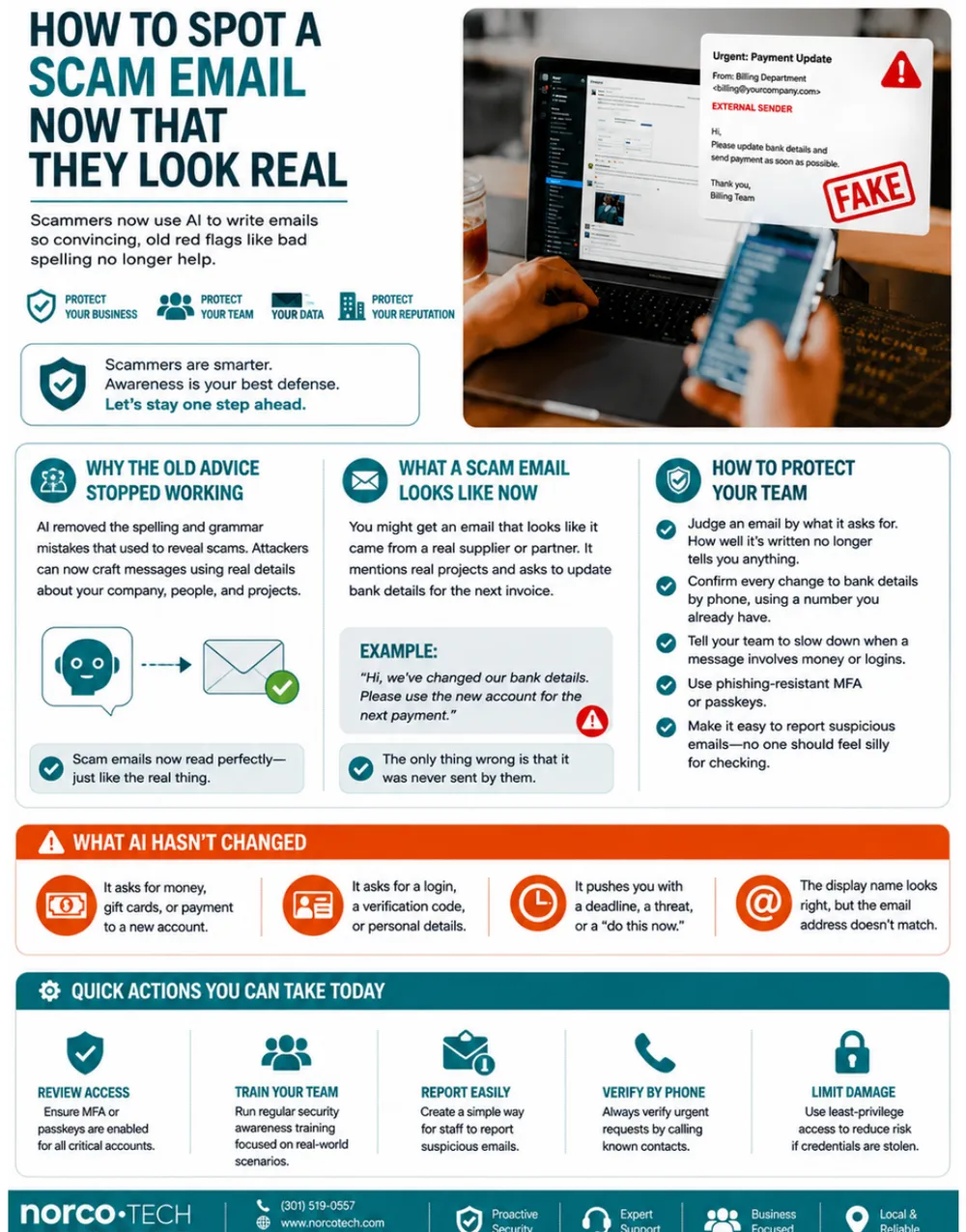
Scammers now use AI to write emails so convincing that old red flags like bad spelling no longer help.
Why the old advice stopped working
AI removed the spelling and grammar mistakes that used to reveal scams. Attackers can now craft messages using real details about your company, people and projects.
What a scam email looks like now
You might get an email that looks like it came from a real supplier or partner. It mentions real projects and asks you to update bank details for the next invoice: “Hi, we've changed our bank details. Please use the new account for the next payment.” The only thing wrong is that it was never sent by them.
Warning signs
- It asks for money, gift cards or payment to a new account.
- It asks for a login, a verification code or personal details.
- It pushes you with a deadline, a threat or a “do this now.”
- The display name looks right, but the email address doesn't match.
How to protect your team
- Judge an email by what it asks for. How well it's written no longer tells you anything.
- Confirm every change to bank details by phone, using a number you already have.
- Tell your team to slow down when a message involves money or logins.
- Use phishing-resistant MFA or passkeys.
- Make it easy to report suspicious emails. No one should feel silly for checking.
- Use least-privilege access to limit the damage if credentials are stolen.
- Run regular security awareness training based on real-world scenarios.
Is your business website a security risk?
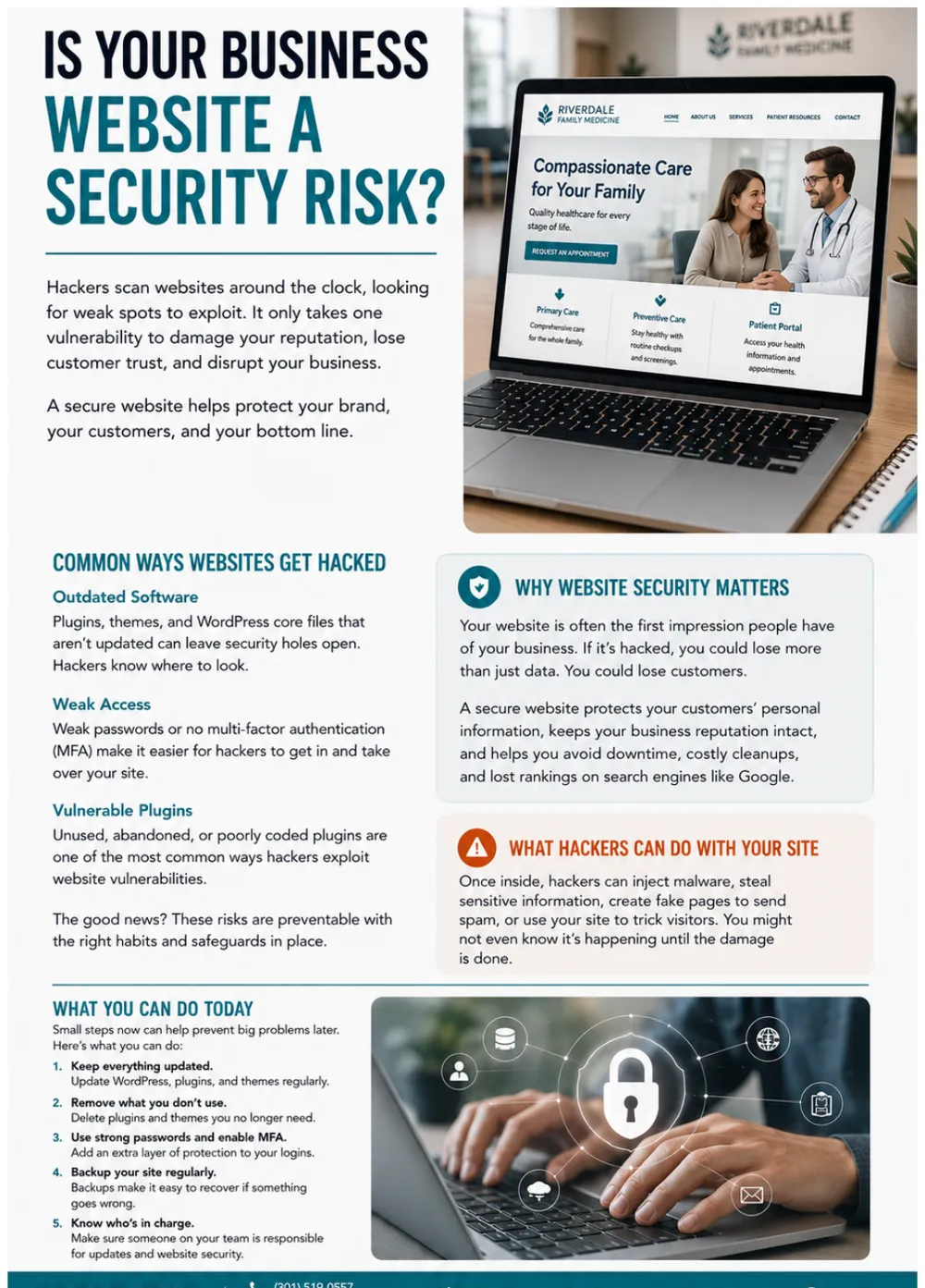
Hackers scan websites around the clock, looking for weak spots to exploit. It only takes one vulnerability to damage your reputation, lose customer trust and disrupt your business. A secure website helps protect your brand, your customers and your bottom line.
Common ways websites get hacked
- Outdated software. Plugins, themes and WordPress core files that aren't updated can leave security holes open. Hackers know where to look.
- Weak access. Weak passwords or no multi-factor authentication (MFA) make it easier for hackers to get in and take over your site.
- Vulnerable plugins. Unused, abandoned or poorly coded plugins are one of the most common ways hackers exploit websites.
Why website security matters
Your website is often the first impression people have of your business. If it's hacked, you could lose more than data; you could lose customers. A secure website protects your customers' personal information, keeps your reputation intact and helps you avoid downtime, costly cleanups and lost rankings on search engines like Google.
Once inside, hackers can inject malware, steal sensitive information, create fake pages to send spam or use your site to trick visitors. You might not even know it's happening until the damage is done.
What you can do today
- Keep everything updated. Update WordPress, plugins and themes regularly.
- Remove what you don't use. Delete plugins and themes you no longer need.
- Use strong passwords and enable MFA. Add an extra layer of protection to your logins.
- Back up your site regularly. Backups make it easy to recover if something goes wrong.
- Know who's in charge. Make sure someone on your team is responsible for updates and website security.
What is a passkey?
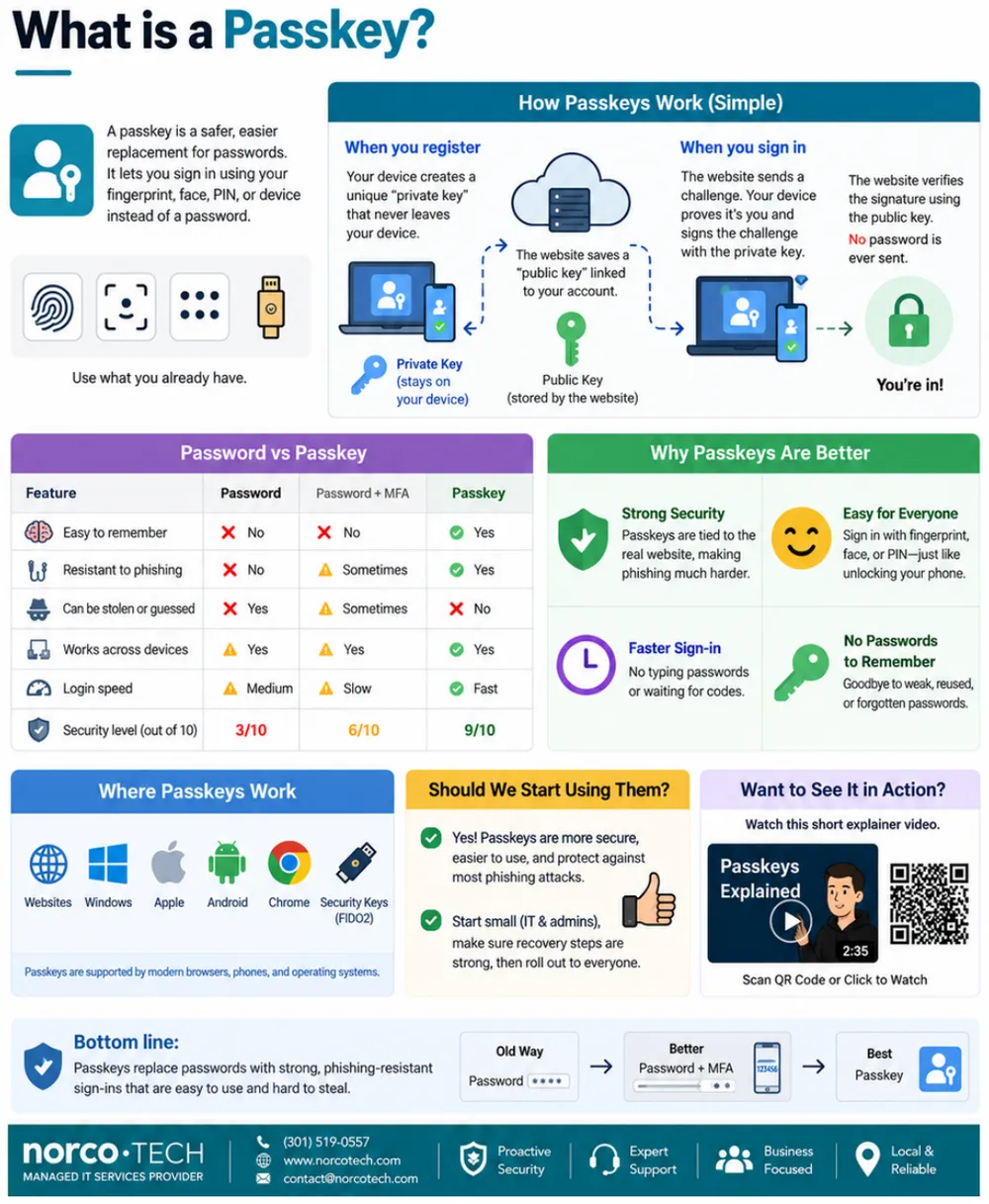
A passkey is a safer, easier replacement for passwords. It lets you sign in using your fingerprint, face, PIN or device instead of a password.
How passkeys work
- When you register, your device creates a unique private key that never leaves your device, and a public key linked to your account.
- When you sign in, the website sends a challenge. Your device proves it's you and signs the challenge with the private key.
- The website verifies the signature using the public key. No password is ever sent.
| Feature | Password | Password + MFA | Passkey |
|---|---|---|---|
| Easy to remember | No | No | Yes |
| Resistant to phishing | No | Sometimes | Yes |
| Can be stolen or guessed | Yes | Sometimes | No |
| Works across devices | Yes | Yes | Yes |
| Login speed | Medium | Slow | Fast |
| Security level (out of 10) | 3 | 6 | 9 |
Why passkeys are better
- Strong security: passkeys are tied to the real website, making phishing much harder.
- Easy for everyone: sign in with fingerprint, face or PIN, just like unlocking your phone.
- Faster sign-in: no typing passwords or waiting for codes.
- No passwords to remember: goodbye to weak, reused or forgotten passwords.
Where passkeys work
Passkeys are supported by modern browsers, phones and operating systems, including Windows, Apple, Android, Chrome and FIDO2 security keys.
Should we start using them?
Yes. Passkeys are more secure, easier to use and protect against most phishing attacks. Start small with IT and admin accounts, make sure recovery steps are strong, then roll out to everyone.
Bottom line: passkeys replace passwords with strong, phishing-resistant sign-ins that are easy to use and hard to steal.
OneDrive or SharePoint? Where your files should live
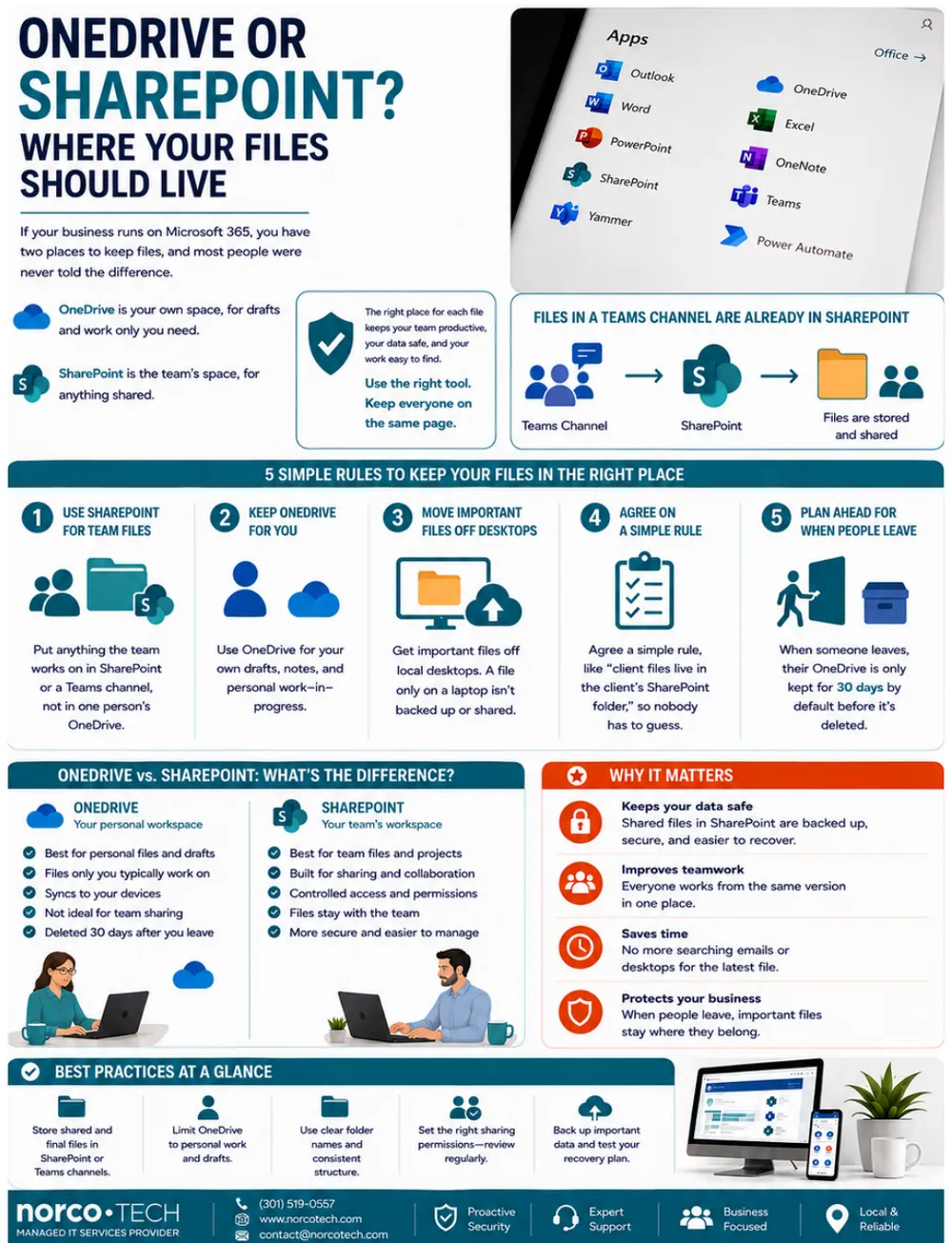
If your business runs on Microsoft 365, you have two places to keep files, and most people were never told the difference. OneDrive is your own space, for drafts and work only you need. SharePoint is the team's space, for anything shared. Files in a Teams channel are already stored in SharePoint.
5 simple rules to keep your files in the right place
- Use SharePoint for team files. Put anything the team works on in SharePoint or a Teams channel, not in one person's OneDrive.
- Keep OneDrive for you. Use it for your own drafts, notes and personal work in progress.
- Move important files off desktops. A file only on a laptop isn't backed up or shared.
- Agree on a simple rule, like “client files live in the client's SharePoint folder,” so nobody has to guess.
- Plan ahead for when people leave. Their OneDrive is only kept for 30 days by default before it's deleted.
OneDrive vs. SharePoint
- Best for personal files and drafts
- Files only you typically work on
- Syncs to your devices
- Not ideal for team sharing
- Deleted 30 days after you leave
- Best for team files and projects
- Built for sharing and collaboration
- Controlled access and permissions
- Files stay with the team
- More secure and easier to manage
Why it matters
- Keeps your data safe: shared files in SharePoint are backed up, secure and easier to recover.
- Improves teamwork: everyone works from the same version in one place.
- Saves time: no more searching emails or desktops for the latest file.
- Protects your business: when people leave, important files stay where they belong.
The 30-minute IT check to do once a month
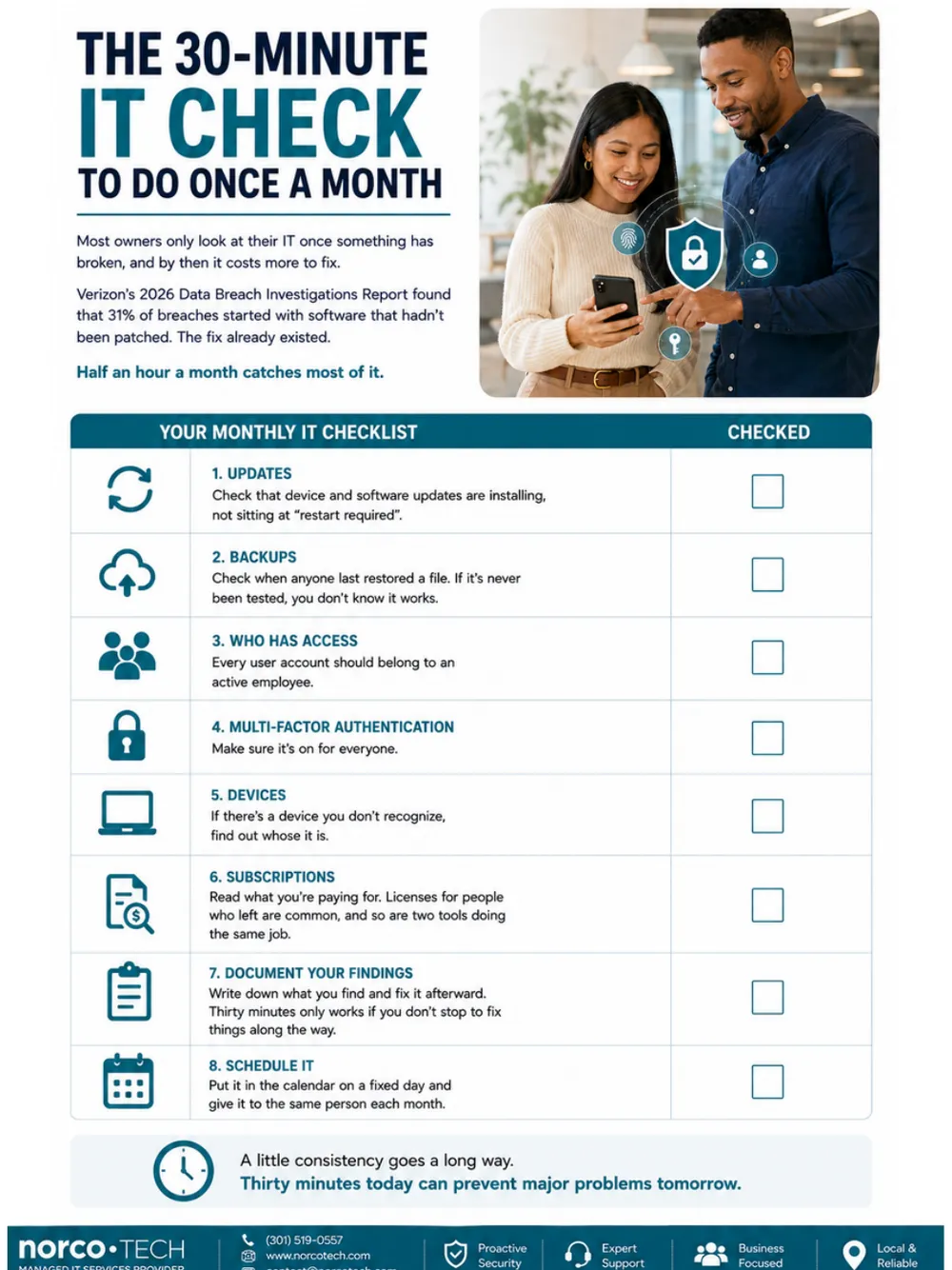
Most owners only look at their IT once something has broken, and by then it costs more to fix. Verizon's 2026 Data Breach Investigations Report found that 31% of breaches started with software that hadn't been patched. The fix already existed. Half an hour a month catches most of it.
Your monthly IT checklist
- Updates. Check that device and software updates are installing, not sitting at “restart required.”
- Backups. Check when anyone last restored a file. If it's never been tested, you don't know it works.
- Who has access. Every user account should belong to an active employee.
- Multi-factor authentication. Make sure it's on for everyone.
- Devices. If there's a device you don't recognize, find out whose it is.
- Subscriptions. Read what you're paying for. Licenses for people who left are common, and so are two tools doing the same job.
- Document your findings. Write down what you find and fix it afterward. Thirty minutes only works if you don't stop to fix things along the way.
- Schedule it. Put it in the calendar on a fixed day and give it to the same person each month.
A little consistency goes a long way. Thirty minutes today can prevent major problems tomorrow.
Want a deeper look? See our IT audits →Don't play security roulette
When was the last time your company completed security testing or awareness training? Data breaches are a part of life now, and skipping vulnerability assessments is like playing Russian roulette with your data. A Norcotech cybersecurity package protects your business without the time and expense of managing it all yourself.
Learn more about security assessments: email contact@norcotech.com or call (301) 519-0557.
Technology trivia
- Now found on almost every modern gadget, what does the acronym USB stand for?
- The 1973 Xerox Alto was the first computer to feature a three-button version of which input device as a standard piece of hardware?
- When Apple debuted Safari in 2003, it was originally exclusive to which operating system?
The first person to email cybertalk@norcotech.com with the correct answers wins a $10 Amazon gift card. August answers: 1. Linux 2. Cricket 3. Alibaba.
Did you know? Wi-Fi doesn't stand for anything. A branding company invented the name in 1999, because the engineers' own term for it was “IEEE 802.11b Direct Sequence.”
Refer a business, get $1,000
Know a business that could benefit from better IT support? Forward an introduction email to contact@norcotech.com and we will take it from there. When your referral becomes a client, we'll thank you with your choice of a $1,000 gift card or a $1,000 credit toward your next managed services invoice.
Get Cybertalk every month
Practical security tips for business owners and employees.